Microsoft PC Manager: What to Click and What to Skip
Microsoft's free PC Manager can tidy up memory, storage and startup apps, as long as you know which buttons to leave alone.
David FischerMost "PC cleaner" apps want you scared. Red warnings, giant numbers of "problems", a countdown to buy the full version. Microsoft PC Manager is different: it's free, it comes from Microsoft itself, and it mostly puts existing Windows tools behind friendlier buttons. That makes it handy. It also makes it easy to click things you don't need.
This guide walks through PC Manager 3.23 on Windows 11 (it also runs on Windows 10 version 19042 and later) and sorts its buttons into three piles: worth using, worth knowing, and better left alone.
Part 1: Get it and look around
PC Manager comes from the Microsoft Store. Search for "Microsoft PC Manager", install it and open it. The left rail has Home, Protection, Storage, Apps and Toolbox.
Home is the dashboard. At the top sits the PC boost card with your memory usage and the size of your temporary files. Below it are smaller cards for Health Check, Process, Deep Cleanup and Startup.
 PC Manager's Home screen: Boost at the top, Deep Cleanup and Startup further down.
Part 2: The buttons worth using
Boost
Click Boost on the PC boost card. PC Manager frees up memory and clears temporary files, then tells you how much it released. It's safe and quick, and it helps most when the PC feels sluggish after a long day with dozens of browser tabs.
Don't expect miracles, though. Boost doesn't make a slow processor faster or a full SSD empty. Think of it as tidying the desk, not buying a bigger one.
Next to the card title you'll find Set Smart Boost. Turn it on and PC Manager boosts on its own when memory use or temporary files pile up. It's off by default. On a PC with little RAM it's a good idea. On a gaming rig with plenty of memory you won't notice much difference.
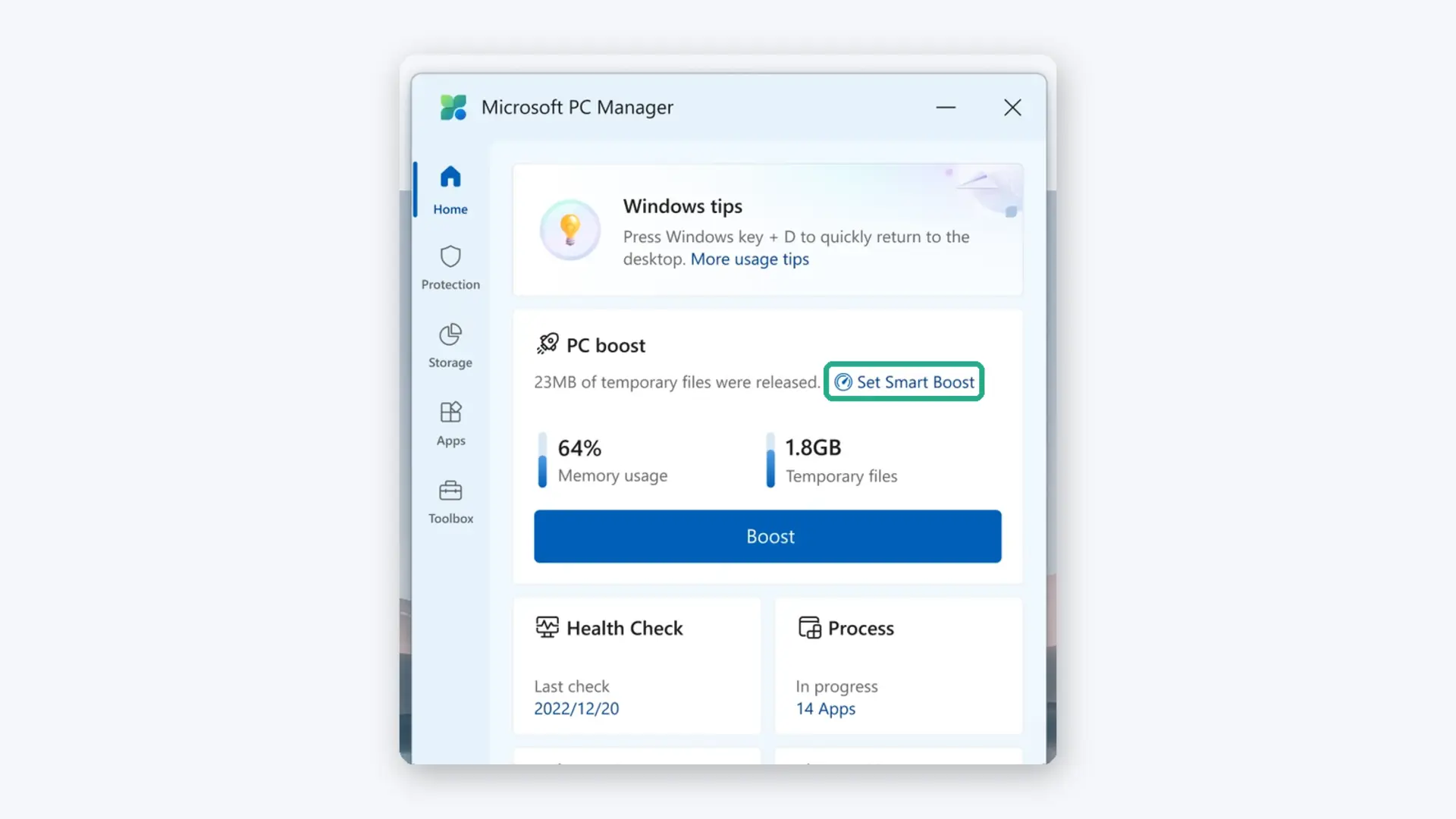 Set Smart Boost sits right next to the PC boost title.
Health Check
Health Check scans for junk files and other quick wins and lists what it found. Read that list before you confirm anything. A health check once a month is plenty.
Startup
This is the most useful card for slow boots. Click Startup (it's also under Apps) to see which programs launch with Windows, then switch off the ones you don't need at every sign-in. Game launchers, chat apps you rarely use and "helper" tools from printer software are typical candidates. You can still open them by hand any time.
The same list exists in Settings > Apps > Startup in Windows 11, so you can double-check there.
Part 3: Storage, the big one
Open Storage in the left rail. Storage management gives you three main tools.
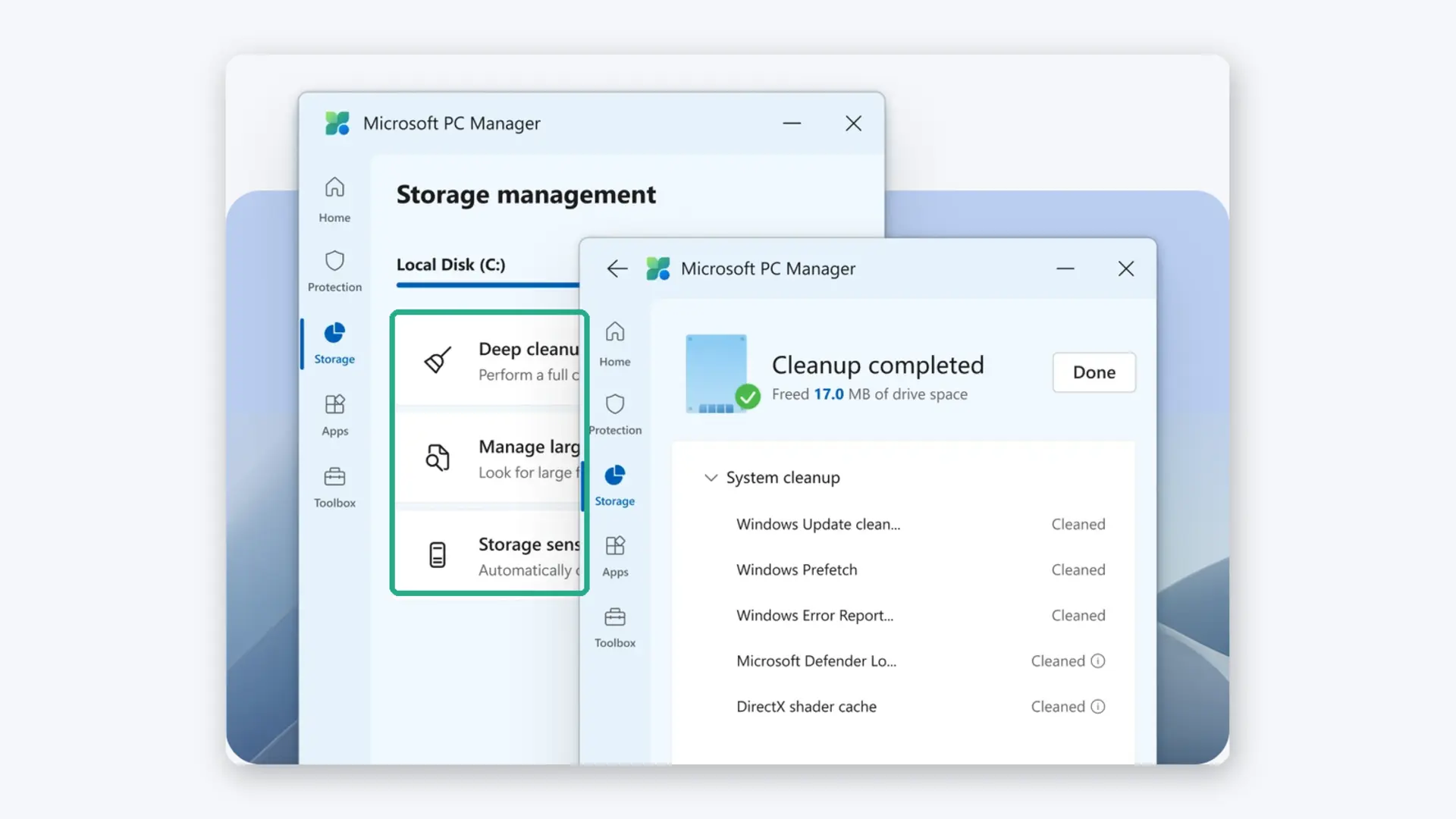 Storage management with Deep cleanup, Manage large files and Storage sense. The right panel shows a finished cleanup.
- Deep cleanup scans for system leftovers, caches and logs, grouped by category. Check the list, untick what you want to keep, then clean. When it's done, a Cleanup completed screen shows how much space you gained.
- Manage large files finds the space hogs. You set a minimum size and file types, and PC Manager lists the matches. Nothing gets deleted automatically, you decide file by file. This is usually where the real gigabytes hide: old videos, ISO images and installers.
- Storage sense switches on the Windows feature of the same name, which clears temporary files and the Recycle Bin on a schedule. You'll find the same switch under Settings > System > Storage in Windows 11.
Part 4: What to leave alone (or click with care)
PC Manager is careful by default. Still, a few items deserve a second look before you hit clean.
- Windows Update cleanup in Deep cleanup removes old update files. That frees a lot of space, but afterwards you may not be able to roll back those older updates. If Windows has been acting strange since the last update, keep these files until things are stable.
- Windows Prefetch files help Windows start apps faster. Windows recreates them anyway, so deleting them gains little and can make the next few app launches slower. Untick it.
- Microsoft Defender logs and the DirectX shader cache are small and get rebuilt. Clearing them is harmless, but don't expect a speed boost. Games may stutter briefly while they rebuild shaders.
- In Startup, keep your security software, cloud sync apps you rely on (Microsoft OneDrive, for example) and anything from your audio, touchpad or graphics driver enabled. Switching those off can break features in ways that are hard to trace back.
- Manage large files shows you the biggest files, not the useless ones. A 20 GB file might be your only copy of the wedding video. Check before you delete.
The Protection section is fine to explore. It bundles quick access to Windows Update, Microsoft Defender and a few fixes such as taskbar repair. There's also Pop-up management for blocking ads and pop-ups from apps. Turn it on if annoying windows bother you. If a message you rely on stops showing up afterward, switch it off again.
Part 5: Keep it from becoming a habit
Cleaners can turn into a ritual: open, boost, clean, repeat, every day. You don't need that. Windows handles temporary files well on its own, especially with Storage sense switched on. Use Boost when the PC feels slow, Startup once after installing new software, and Deep cleanup when the drive runs low. That's it.
If you want a heavier tool for system maintenance, UpdateStar lists alternatives such as Advanced SystemCare Ultimate and WinZip System Utilities Suite. For most home PCs, PC Manager plus the built-in Windows settings is enough.
Our verdict
Microsoft PC Manager suits anyone who wants an easy, ad-free way to clean up and speed up a Windows PC without trusting a third-party cleaner. Its best features are Startup and Manage large files, and its biggest pitfall is cleaning things just because they're listed. Do one thing today: open Startup, switch off two apps you never use at sign-in, and enjoy the faster boot tomorrow morning.
Related on UpdateStar
- Microsoft PC Manager on UpdateStar
- Microsoft PC Manager alternatives, including Advanced SystemCare Ultimate, WinZip System Utilities Suite and Security Task Manager
- UpdateStar Tutorials
About Author
David Fischer
I am a technology writer for UpdateStar, covering software, security, and privacy as well as research and innovation in information security. I worked as an editor for German computer magazines for more than a decade before starting to be a team member at UpdateStar.