1Password on Windows: Four Tricks That Save Real Time
Quick Access, Windows Hello unlock, Watchtower and a properly paired browser extension turn 1Password 8 into a two-second habit.
Boris WeberMost people use a password manager like a locked drawer. They open the app, search, copy, paste, close. It works, but it's slow, and slow habits make you fall back on that one password you reuse everywhere. 1Password 8 for Windows has four features that change the routine completely: a shortcut that finds any login from anywhere, face or fingerprint unlock, a security dashboard that tells you what to fix, and a browser extension that fills logins for you.
Set them up once and you'll rarely open the main window again. UpdateStar currently lists 1Password 8.12.42.
Trick 1: Summon Quick Access with one shortcut
Quick Access is a small search bar that floats over whatever app you're using. Press Ctrl+Shift+Space and it appears. It suggests items that match the apps you have open and the ones you use most. If your item isn't there, just start typing.
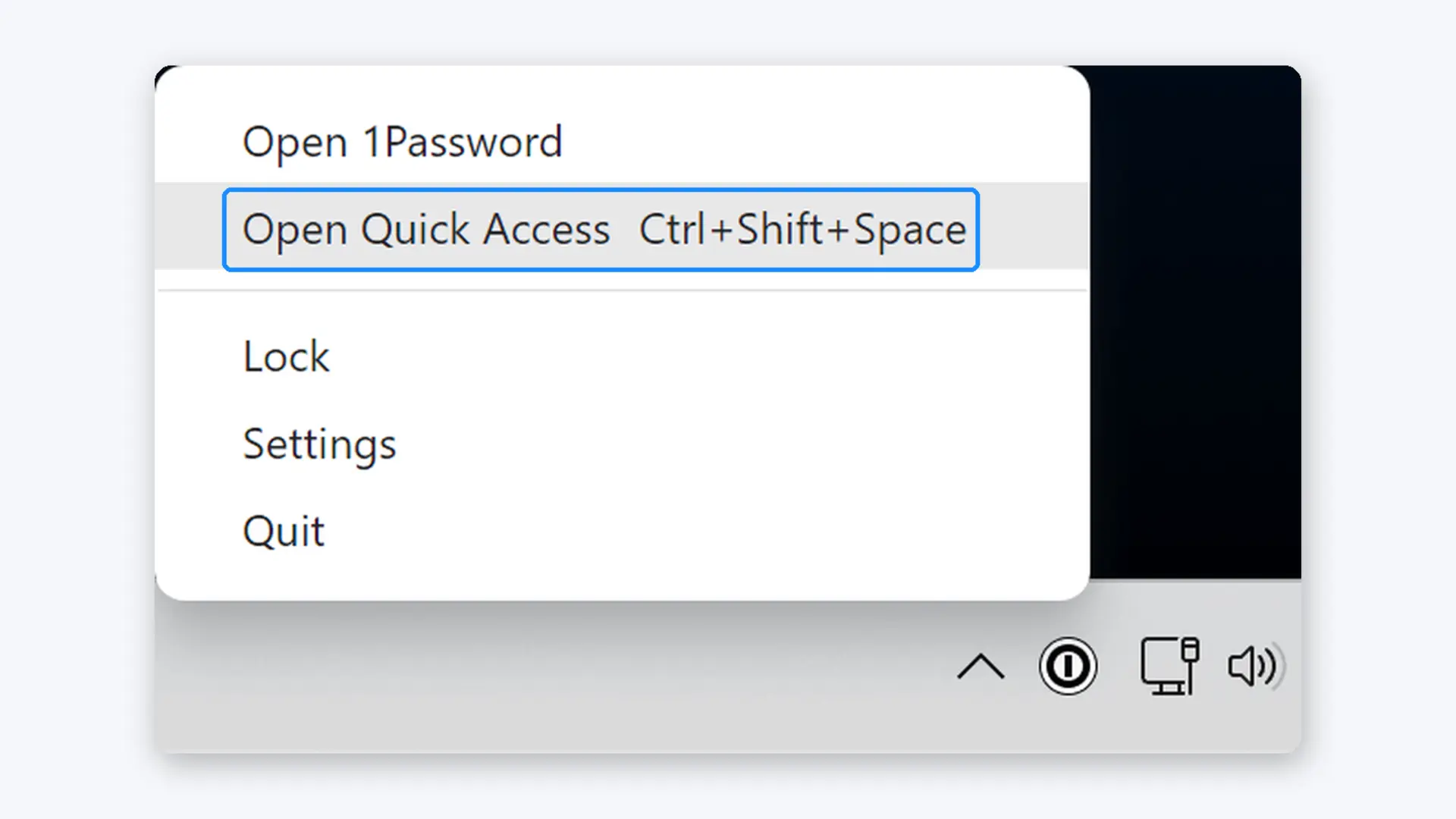 Right-click the 1Password tray icon to open Quick Access; the shortcut is shown next to it.
Here's how to work it fast:
- Press Ctrl+Shift+Space, type a few letters, then select an item name to open its website and fill your username and password.
- To fill a desktop app instead, press Right Arrow (or select the ellipsis) to see all actions. Choose Copy Username or Copy Password and paste into the app.
- Or skip the menu: Ctrl+C copies the username and Ctrl+Shift+C copies the password.
- Press Esc to clear the search.
Want the tray icon to open Quick Access with a single click? Right-click the 1Password icon in the system tray, choose Settings, and set Click the icon to to Show Quick Access.
Is Ctrl+Shift+Space already taken by another program? You can change it. Open and unlock 1Password, select your account or collection at the top of the sidebar, go to Settings > General and enter your own shortcut. The same page holds the global shortcuts to show 1Password, lock it (Ctrl+Shift+L by default) and fill in the browser (Ctrl+\).
Copied passwords don't hang around on your clipboard. 1Password removes them automatically after 90 seconds. That option lives under Settings > Security, and it's worth leaving on.
Trick 2: Unlock with your face or fingerprint
Typing a long account password ten times a day gets old. Windows Hello fixes that. First make sure Windows Hello works for signing in to your PC (check Start > Settings > Accounts > Sign-in options). Then:
- Open and unlock 1Password.
- Select your account or collection at the top of the sidebar, then Settings.
- Select Security and turn on Unlock using Windows Hello.
- Lock 1Password once from the same account menu and unlock with your account password. From then on, Windows Hello appears with "Making sure it's you".
By default you still need your account password after you quit 1Password or restart the PC. To use Windows Hello even then, turn on Use your device's Trusted Platform Module to unlock in the same Security section.
Don't forget your account password, though. 1Password asks for it now and then, for example when the time set under Confirm my account password runs out, when you change the password, or when your face or fingerprint isn't recognized.
Docking a laptop and the camera or fingerprint reader goes missing? Turn off Show Windows Hello prompt automatically. You can then type your password straight away, and press Enter or select the Windows Hello button when you do want the prompt.
Trick 3: Let Watchtower tell you what to fix
Select Watchtower in the sidebar and you get a dashboard of security problems across your saved items. Only categories that actually contain items appear, so a short dashboard is good news.
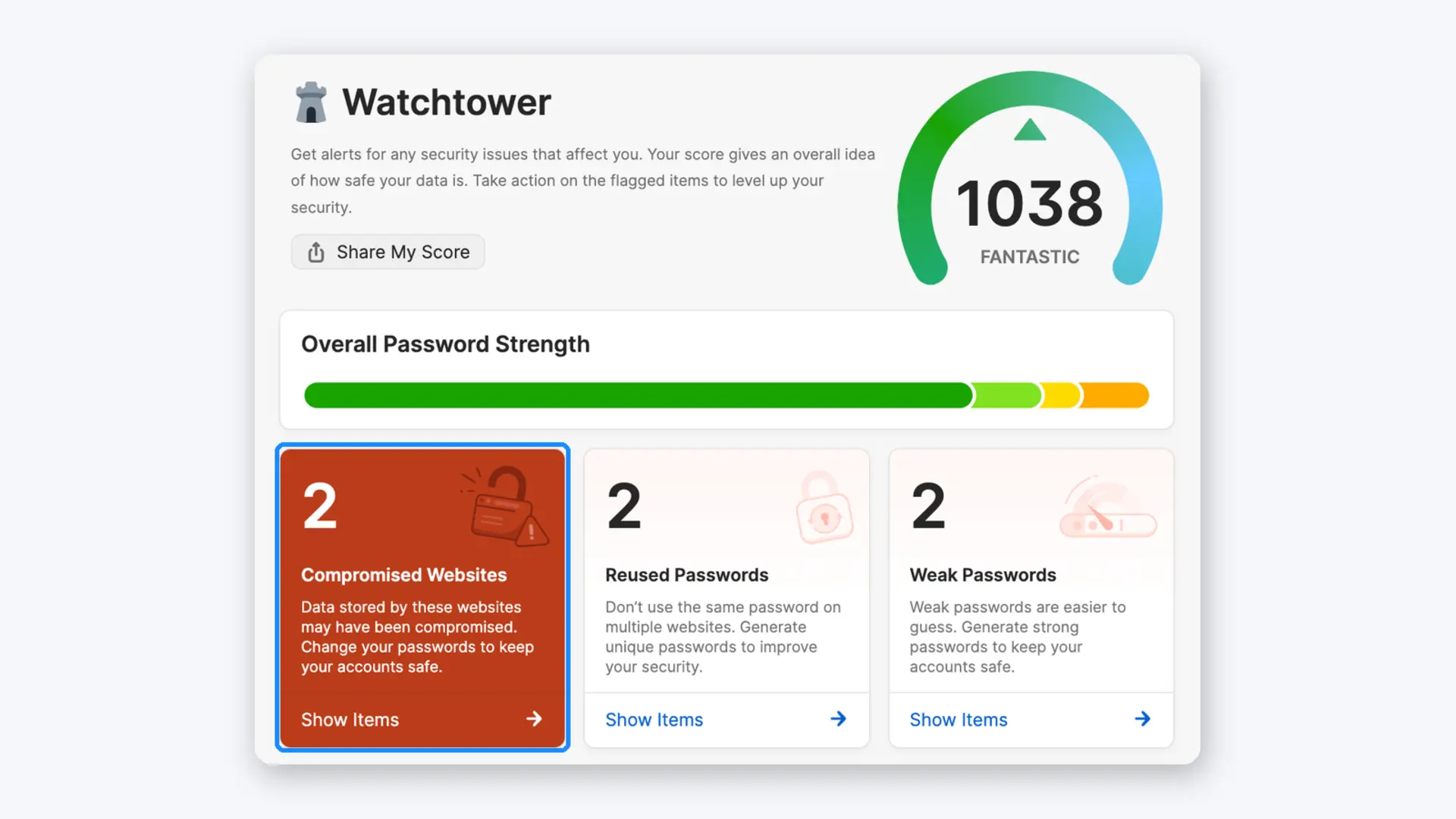 Watchtower in 1Password 8. Start with the compromised websites, then work through the rest.
Work through it in this order:
- Compromised websites and Vulnerable passwords first. These are logins for sites with a reported breach where you haven't changed the password since, or passwords that turned up in a breach.
- Reused passwords next. Items are grouped by the shared password, so you see at a glance which accounts fall together if one leaks.
- Weak passwords, then Two-factor authentication. The latter lists sites that support a one-time code you haven't set up yet. Select Scan QR Code when the site shows you its code and 1Password becomes your authenticator.
- Finally the tidy-up categories: Passkeys available, Unsecured websites (fix with Use HTTPS), Expiring items and Items with duplicates, where Delete all duplicates cleans up in one go.
To limit the dashboard to one account or collection, pick it at the top of the sidebar. Watchtower settings live under Settings > Privacy.
Trick 4: Pair the browser extension with the app
Install the 1Password extension in your browser and pin it to the toolbar. It works with Chrome, Edge, Firefox and Brave, and it locks and unlocks together with the desktop app, so Windows Hello covers your browser too. Check both sides of the connection:
- In the desktop app: Settings > Browser, then make sure Connect with 1Password in the browser is on.
- In the extension: select the 1Password icon in the toolbar, open the account menu in the top left corner, choose Settings > General and turn on Integrate this extension with the 1Password desktop app.
- While you're there, turn on Make 1Password the default password manager in this browser so the browser's own password prompts stop getting in the way.
Now visit a login page. A Sign in prompt appears at the top of the page. Select it or press Enter. If you have several logins for the site, choose Other options.
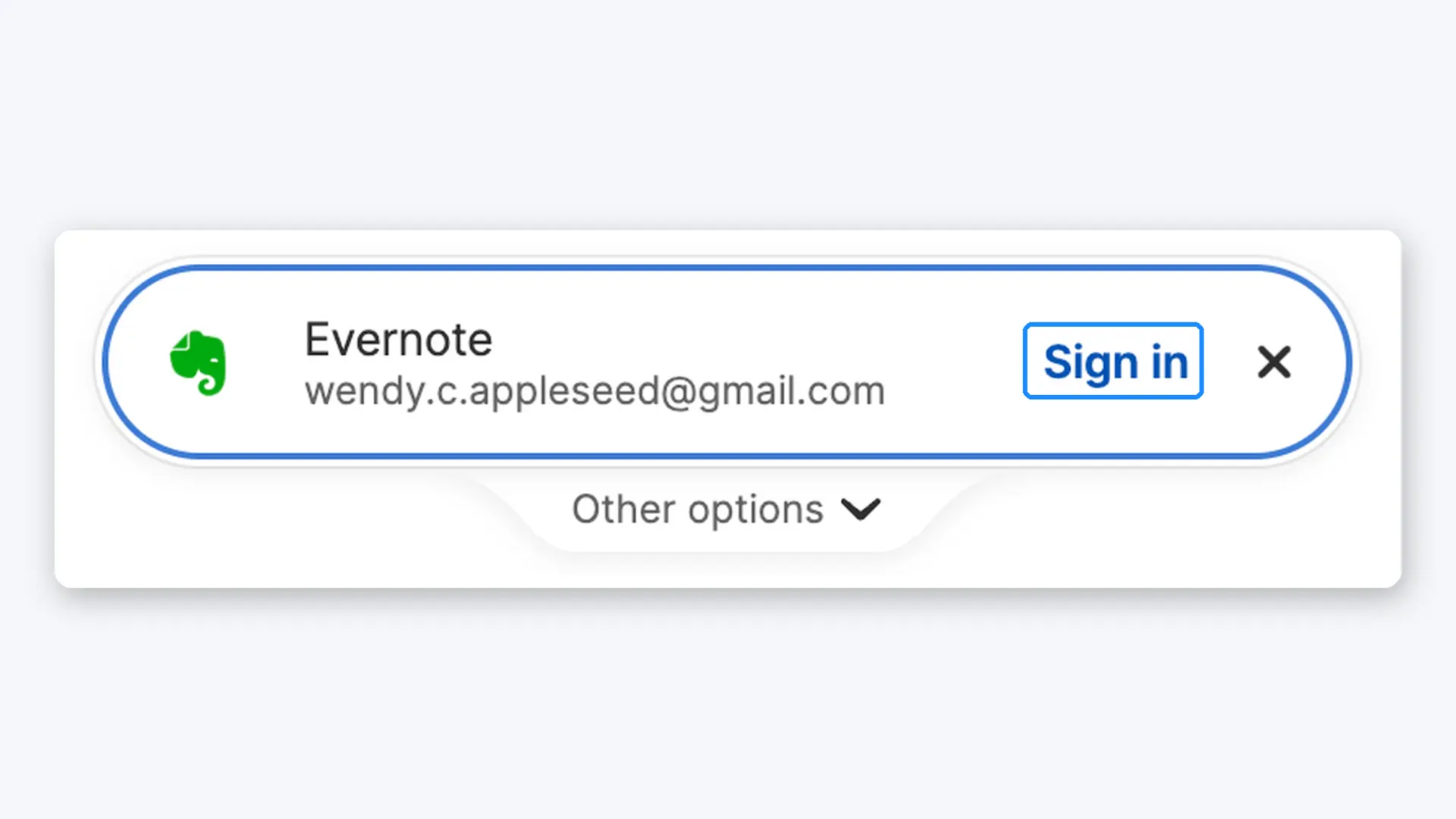 The extension's sign-in prompt fills your login with one click or the Enter key.
To open the extension pop-up from the keyboard, press Ctrl+Shift+X in Chrome, Edge or Brave, or Ctrl+. in Firefox.
If the extension won't unlock with the app
Update the desktop app, the extension and the browser first. If it still doesn't connect, right-click the 1Password tray icon, choose Quit, reopen the app and restart the browser. On a company PC, your IT team may block native messaging between extensions and apps, which breaks the pairing.
Our verdict
If you already pay for 1Password, these four features are where the subscription earns its keep: Quick Access saves seconds every hour, Windows Hello saves your patience, and Watchtower points straight at the accounts at risk. Turn on Unlock using Windows Hello today, then spend ten minutes on the compromised websites in Watchtower.
Related on UpdateStar
- 1Password on UpdateStar
- Other password managers on UpdateStar: Bitwarden, KeePassXC and Dashlane
- UpdateStar Tutorials
About Author
Boris Weber
I am an editor at UpdateStar. I started as a support engineer, and am now specialized in writing about general software topics from a usability and performance angle among others. I telecommute from UpdateStar’s Berlin office, when I am not working remote as a digital nomad for UpdateStar.